 Monlet


Targets & Live
Watch the responses.
Choose targets and follow their responses in the app’s live graphs.
Monlet for iPhone & iPad
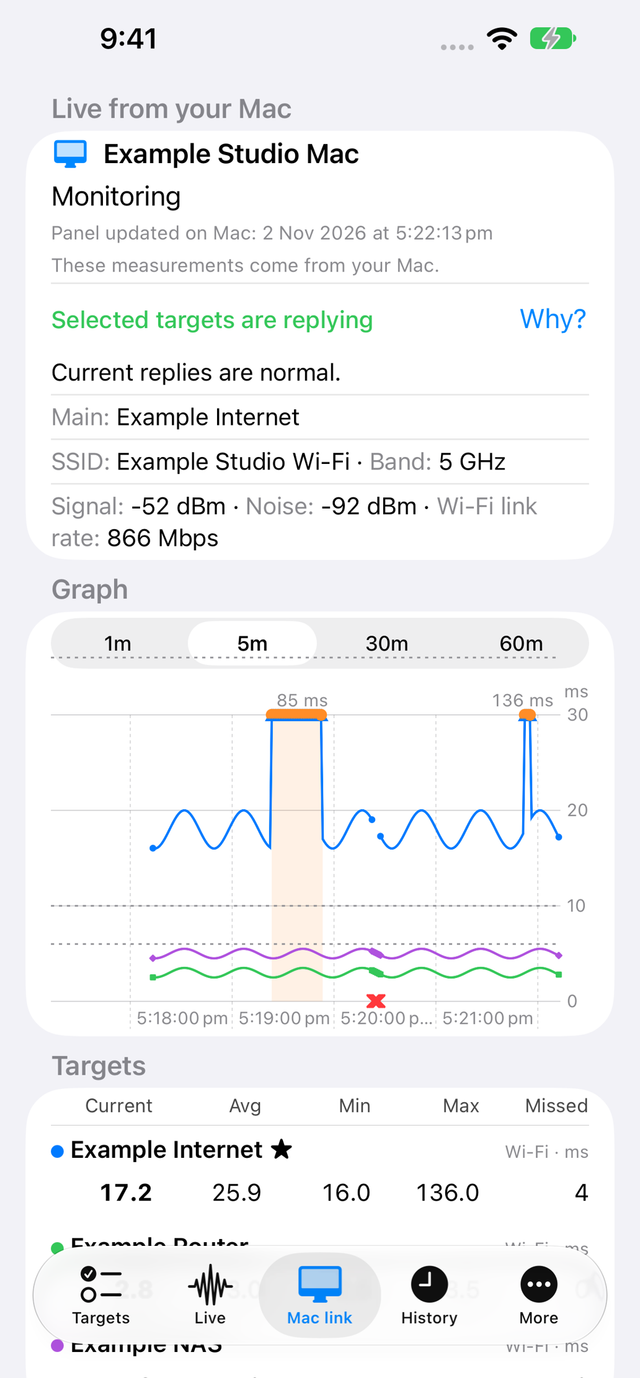
Check your connection on iPhone or iPad without a Mac, or pair with a reachable Mac for its live view. On iPhone and iPad, see your paired Mac’s panel, alerts and History.
Every feature is free today. No subscriptions; optional tips support Monlet.
On this device
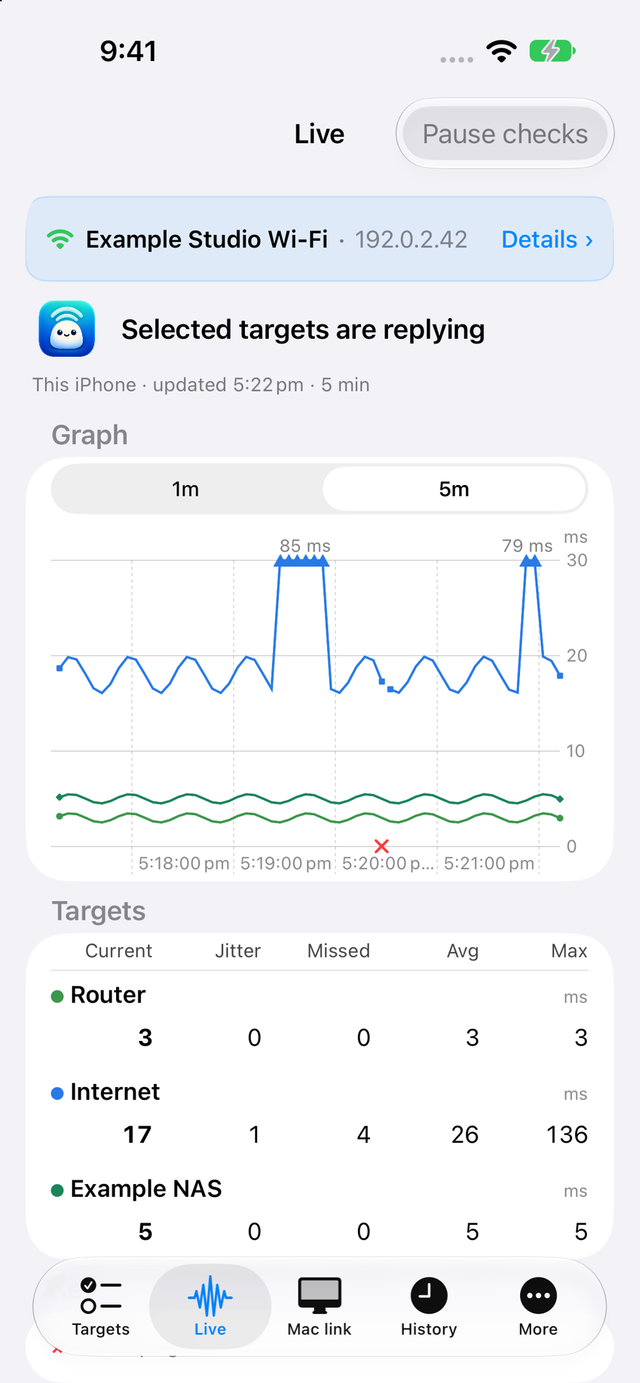
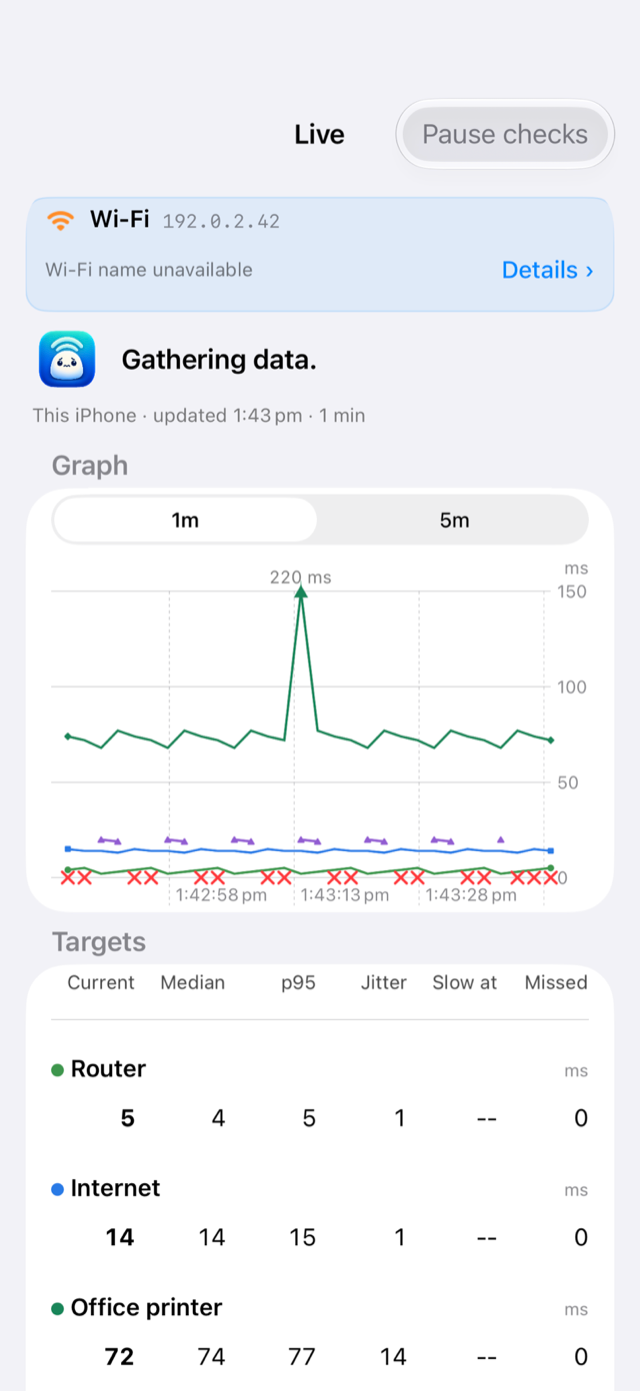
Run foreground checks on your iPhone or iPad. Follow live graphs and explore what the results tell you.
Targets & Live
Choose targets and follow their responses in the app’s live graphs.
DNS & HTTPS
Time system name resolution and review HTTPS responses alongside ping results. DNS caches can affect lookups; mobile HTTPS defaults to HEAD, accepts successful 2xx responses and does not follow redirects. These checks do not validate page content or measure bandwidth.
Insights
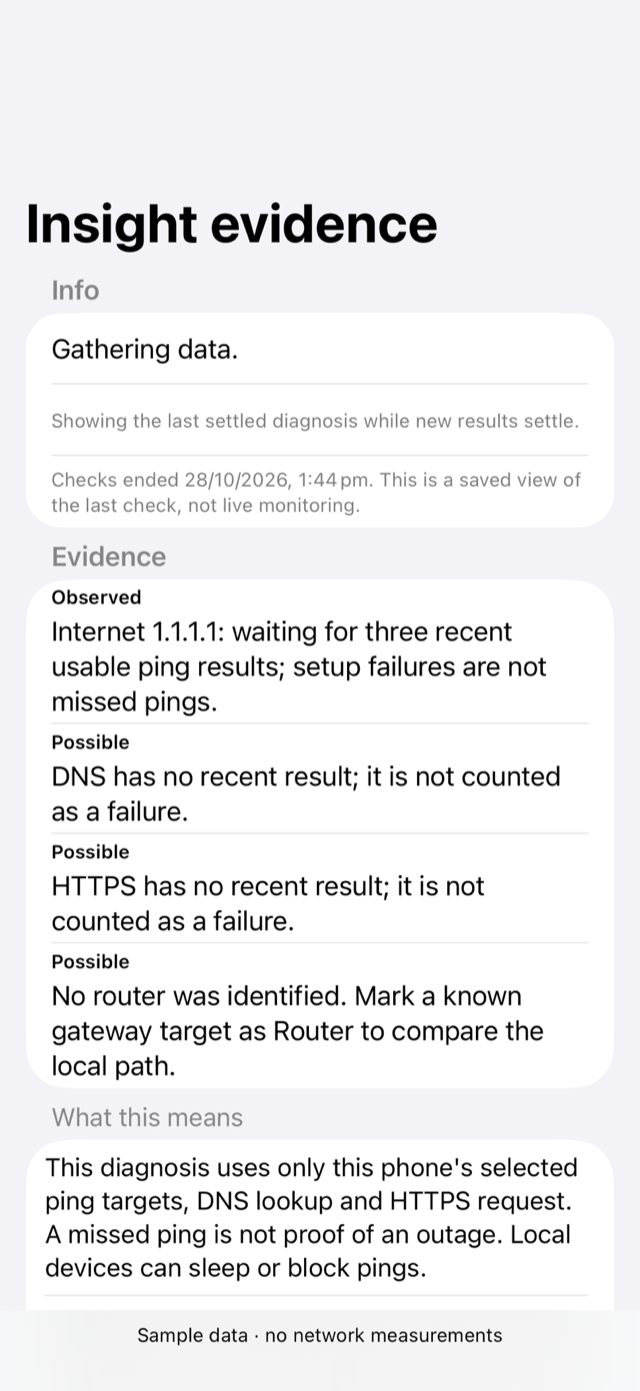
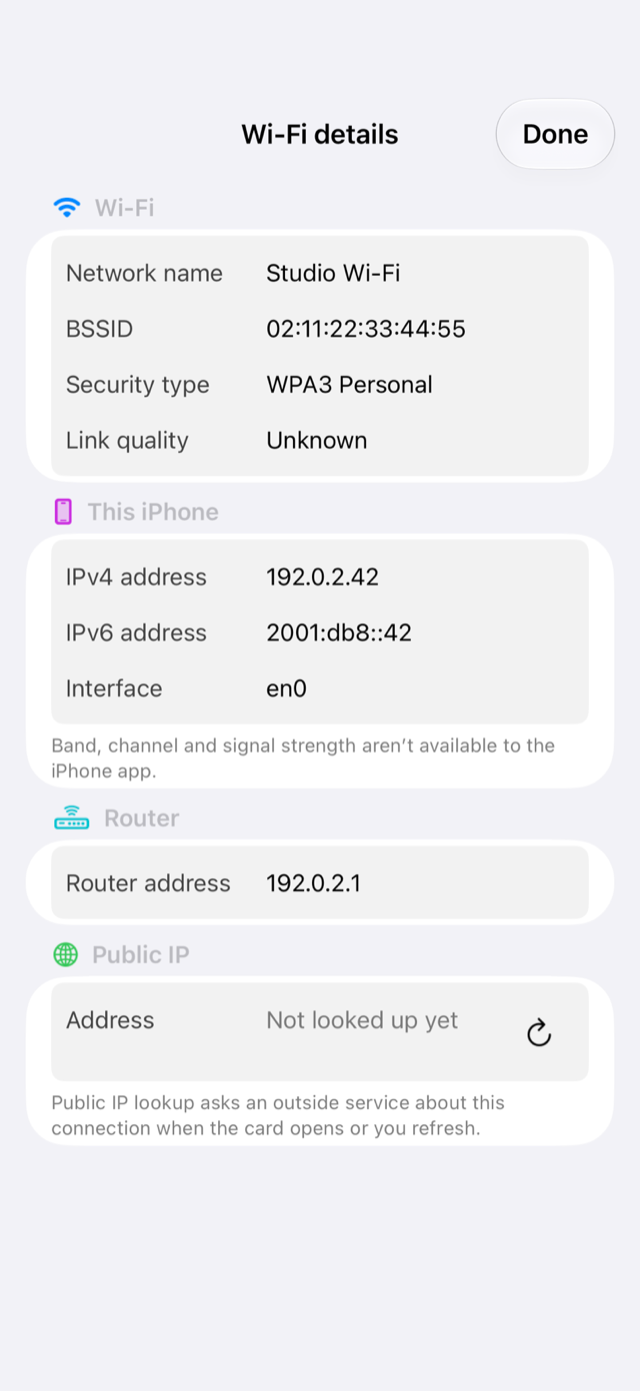
The companion’s own Insights explain observations from its checks, with Observed, Likely and Possible labels on evidence items. These rule-assigned kinds are not calculated probabilities, and mobile uses a different rule set from Mac.
Keep Monlet open while running device checks. These are foreground checks, not always-on background monitoring.
Saved sessions
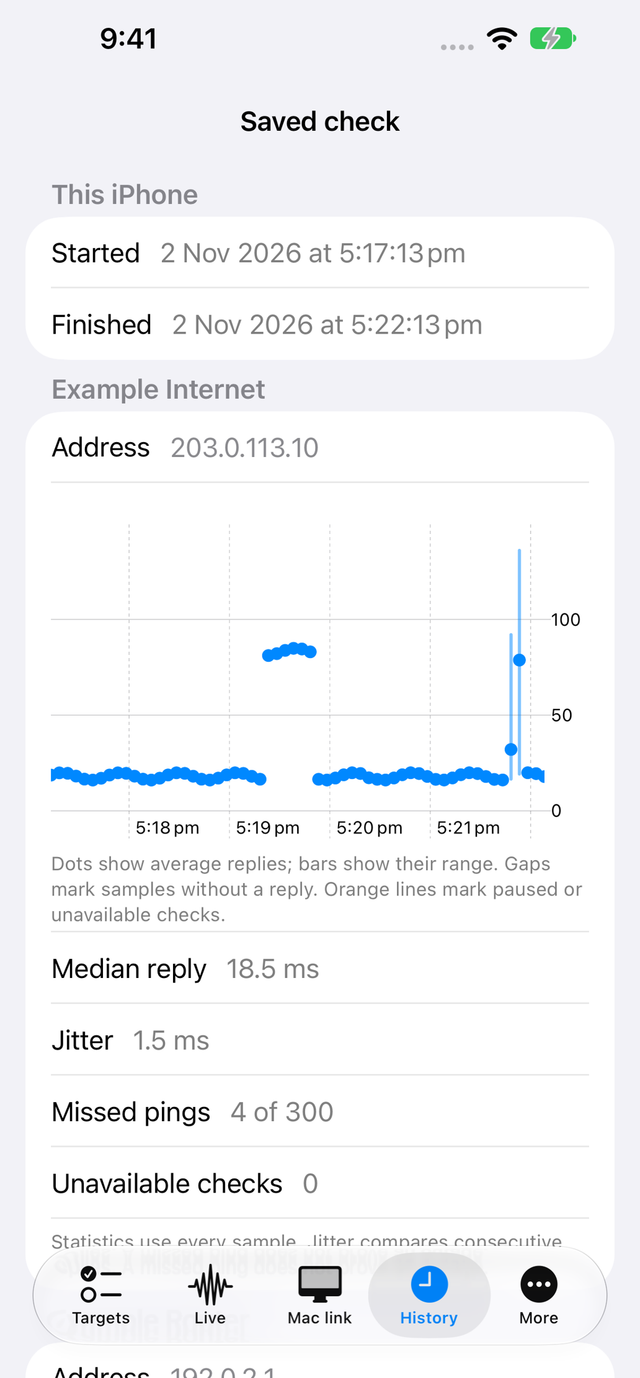
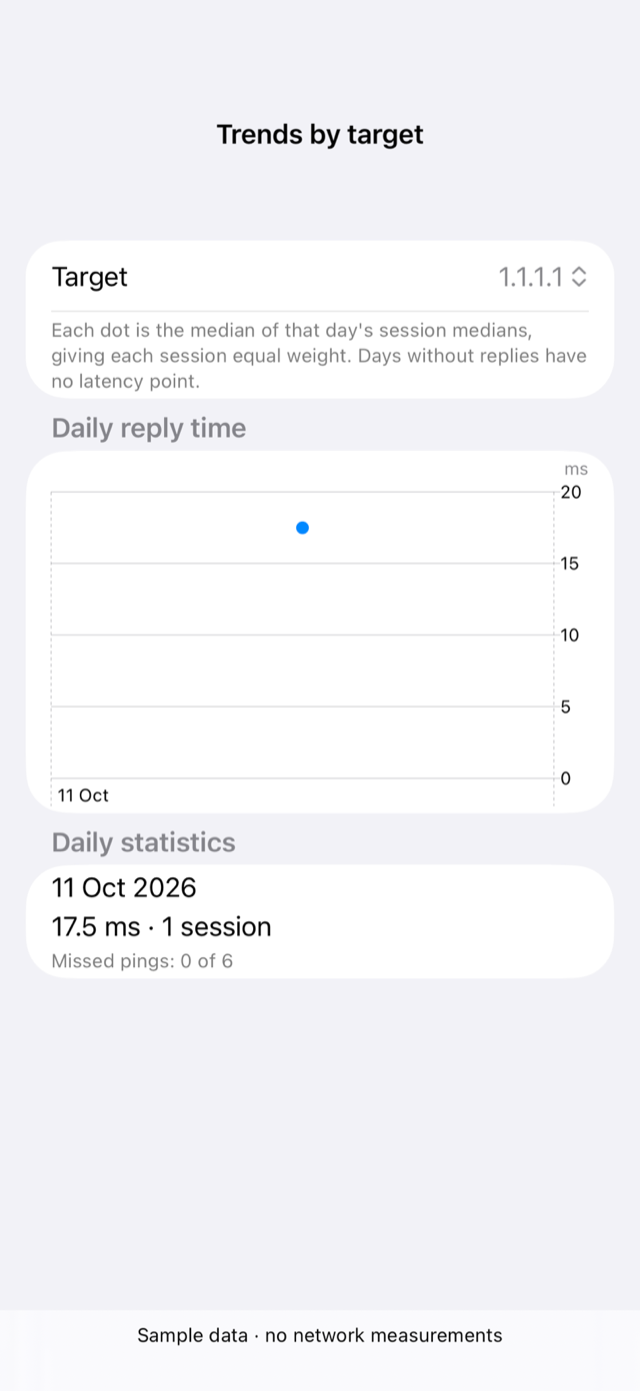
Open saved sessions in History to review graphs and statistics. Trends give you another way to compare measurements over time.
Room walks
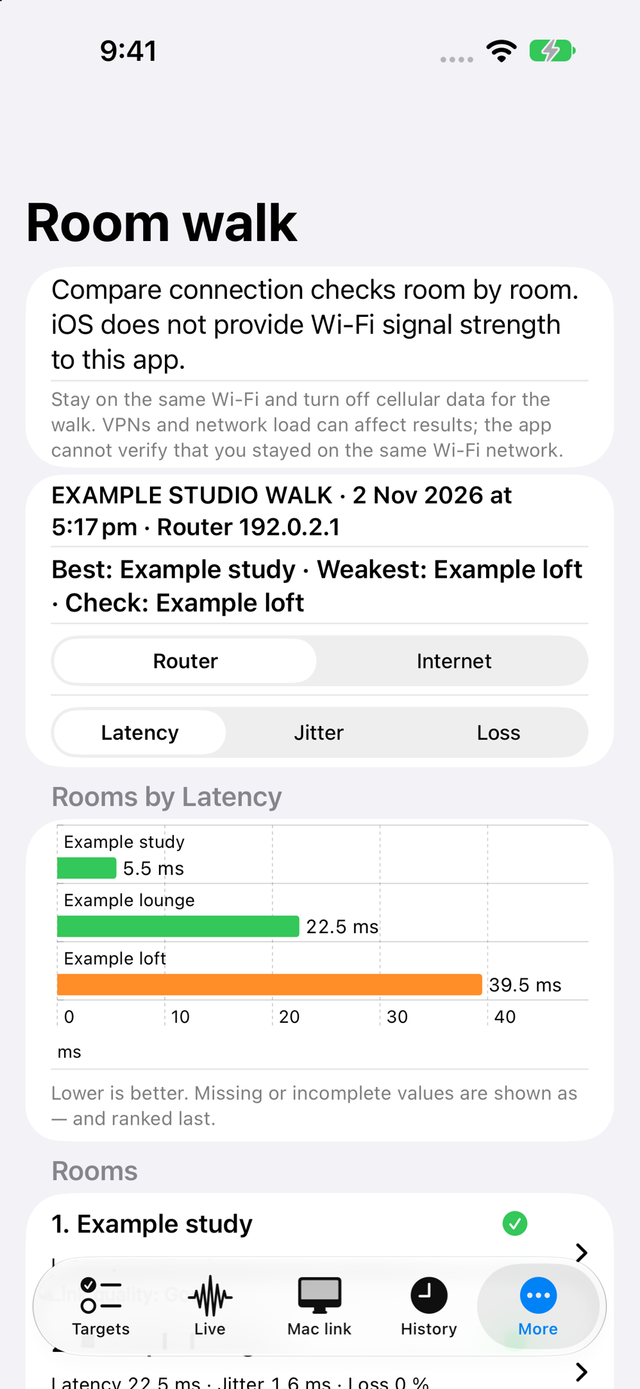
Compare responses from one selected router, public or custom ping target in named rooms. Keep Monlet open on the same Wi-Fi network; a new walk measures that target rather than simultaneous router, internet, DNS and web checks. Save a walk, rerun it and compare the results.
Room walks compare measured responses. They are not a radio-strength heatmap or a guaranteed coverage assessment.
From your paired Mac
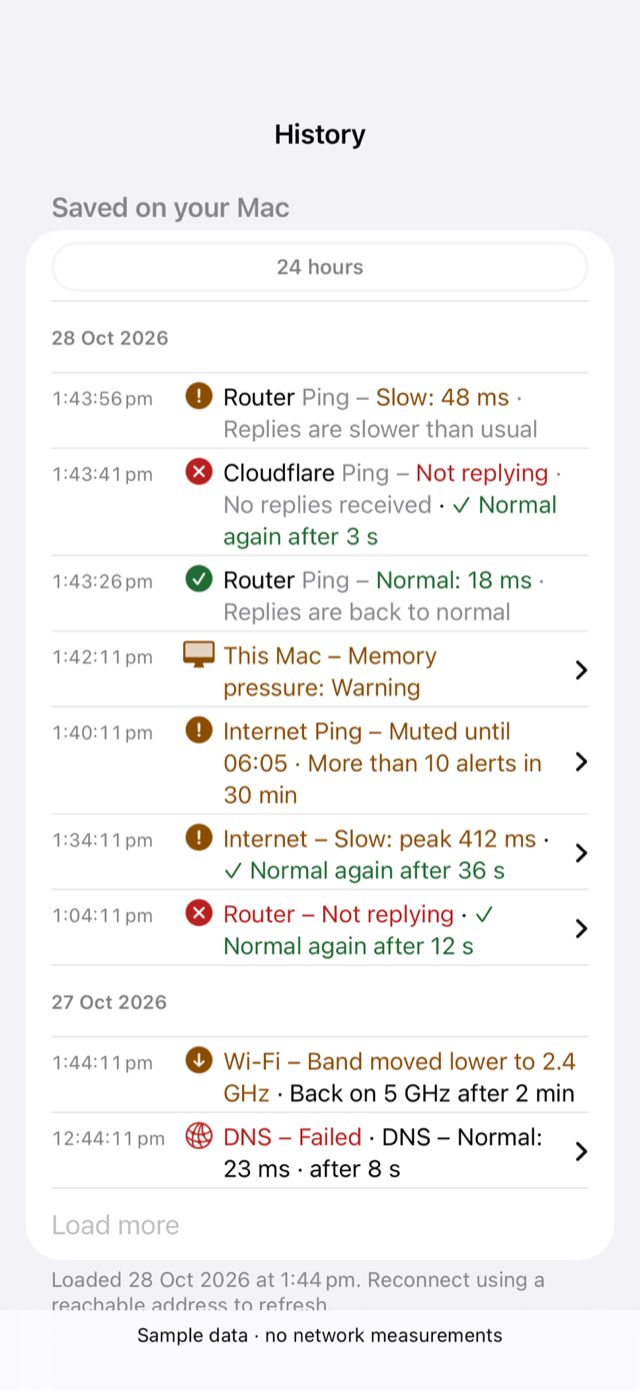
Pair with your Mac to see its network panel, alerts and the History you ask to load. Your device’s checks and your Mac’s measurements remain distinct.
Open the Mac view for the shared panel and alerts, then explore loaded Mac History.
With Full control access granted by the Mac, change its main target, pause checks or snooze alerts. View only access keeps those settings read-only.
What stays live
The live Mac link needs Monlet open or recently active on iPhone or iPad. Receiving stops when iOS suspends the app or the device locks.
The direct link uses standard TLS 1.3 and needs Secure Enclave on both devices. Any reachable route can carry it, with no VPN switch or Monlet relay.
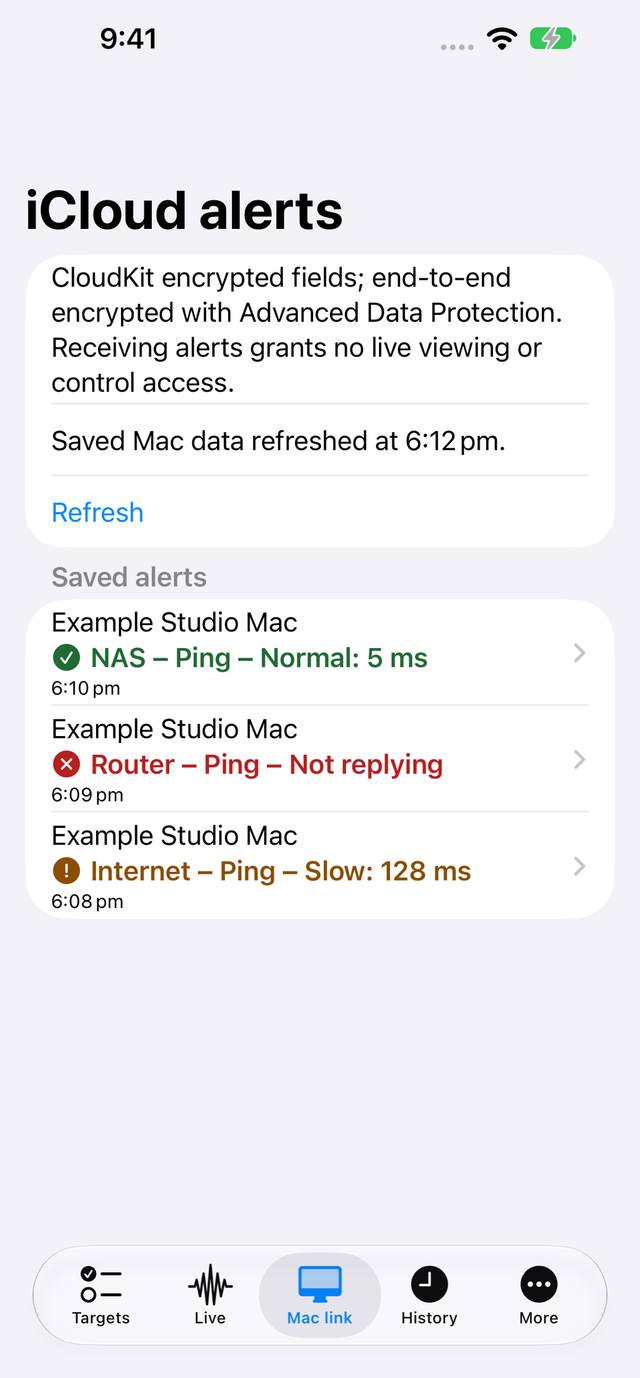
Optional iCloud alerts can arrive while the app is closed. Use the same Apple Account and allow notifications; pairing is not required. Disk-space alerts stay on the Mac.
Pairing and live-link help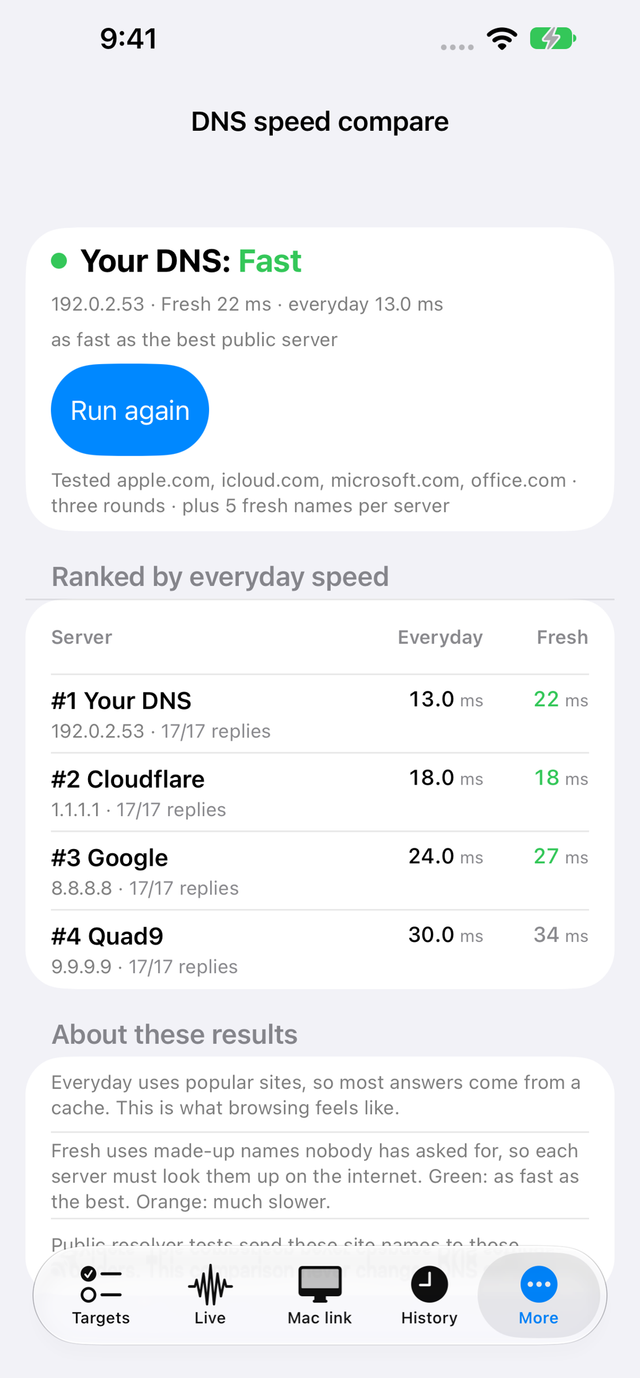
On iPad
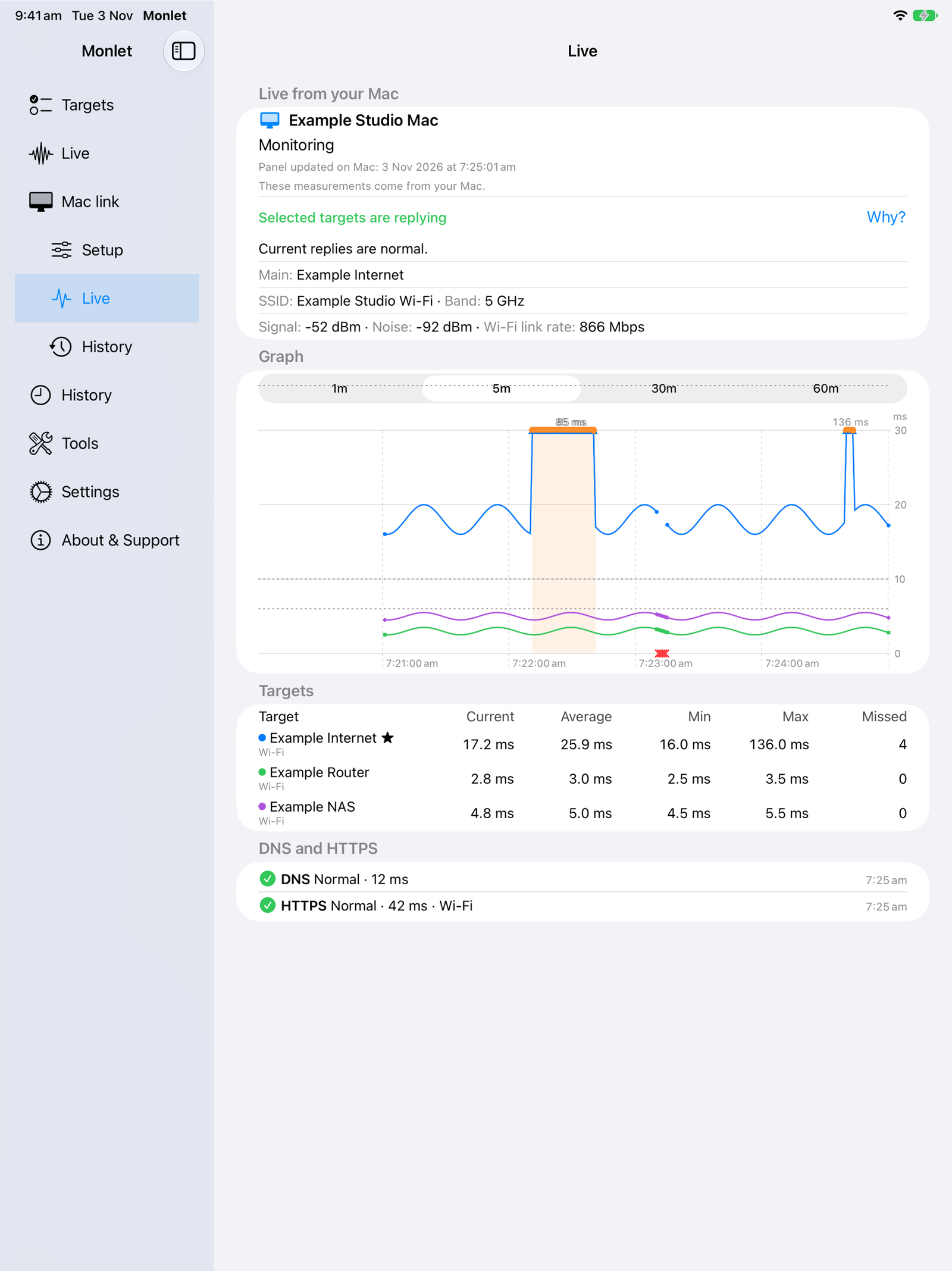
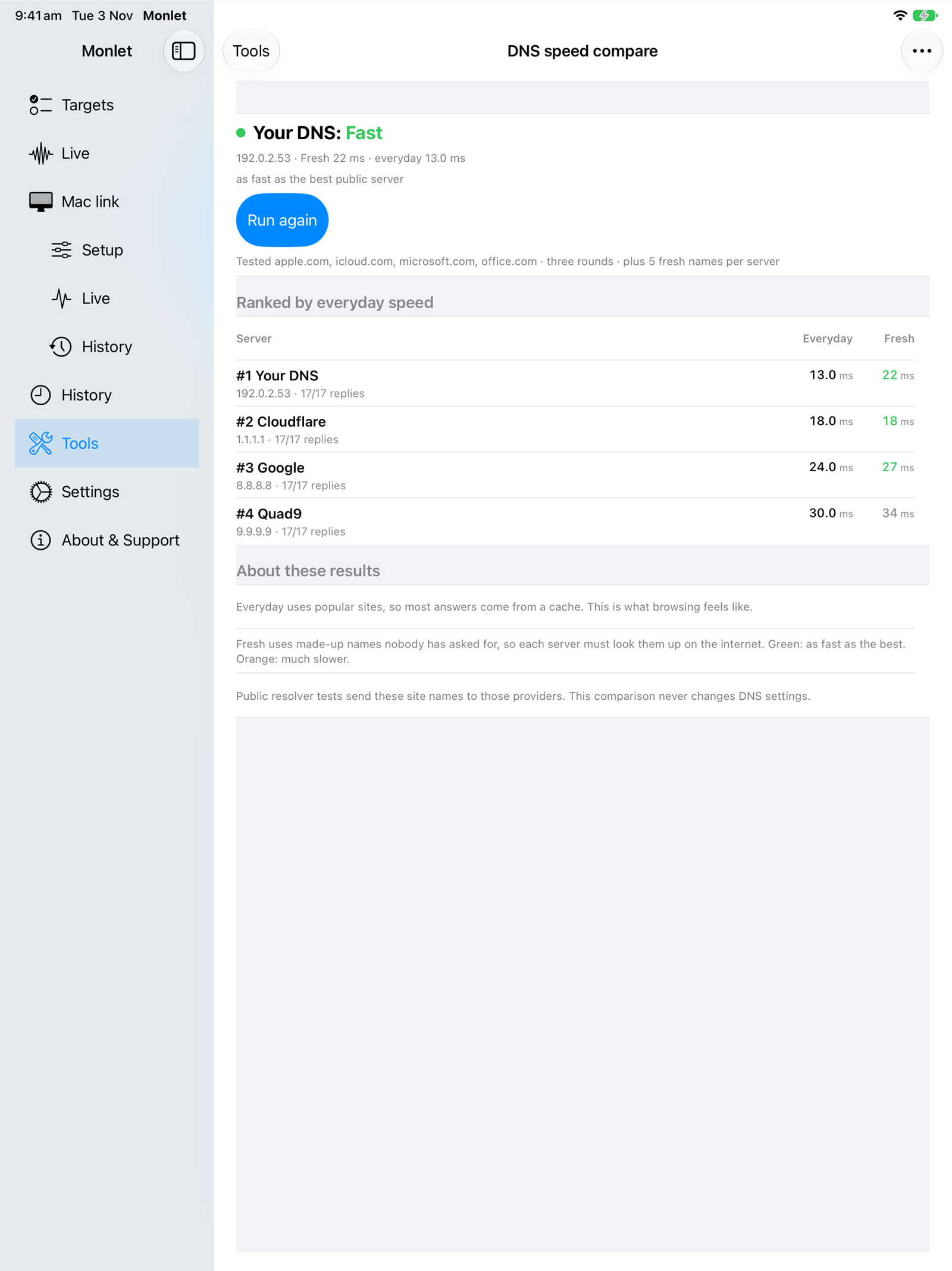
The iPad layout has an expanded sidebar and wider graph and detail presentation. Move between views with navigation alongside the content.
In the expanded sidebar, Mac pairing is under Mac link → Setup and About & Support has help and optional tips. The iPhone Duo open layout also places a selected detail beside the list when there is room.
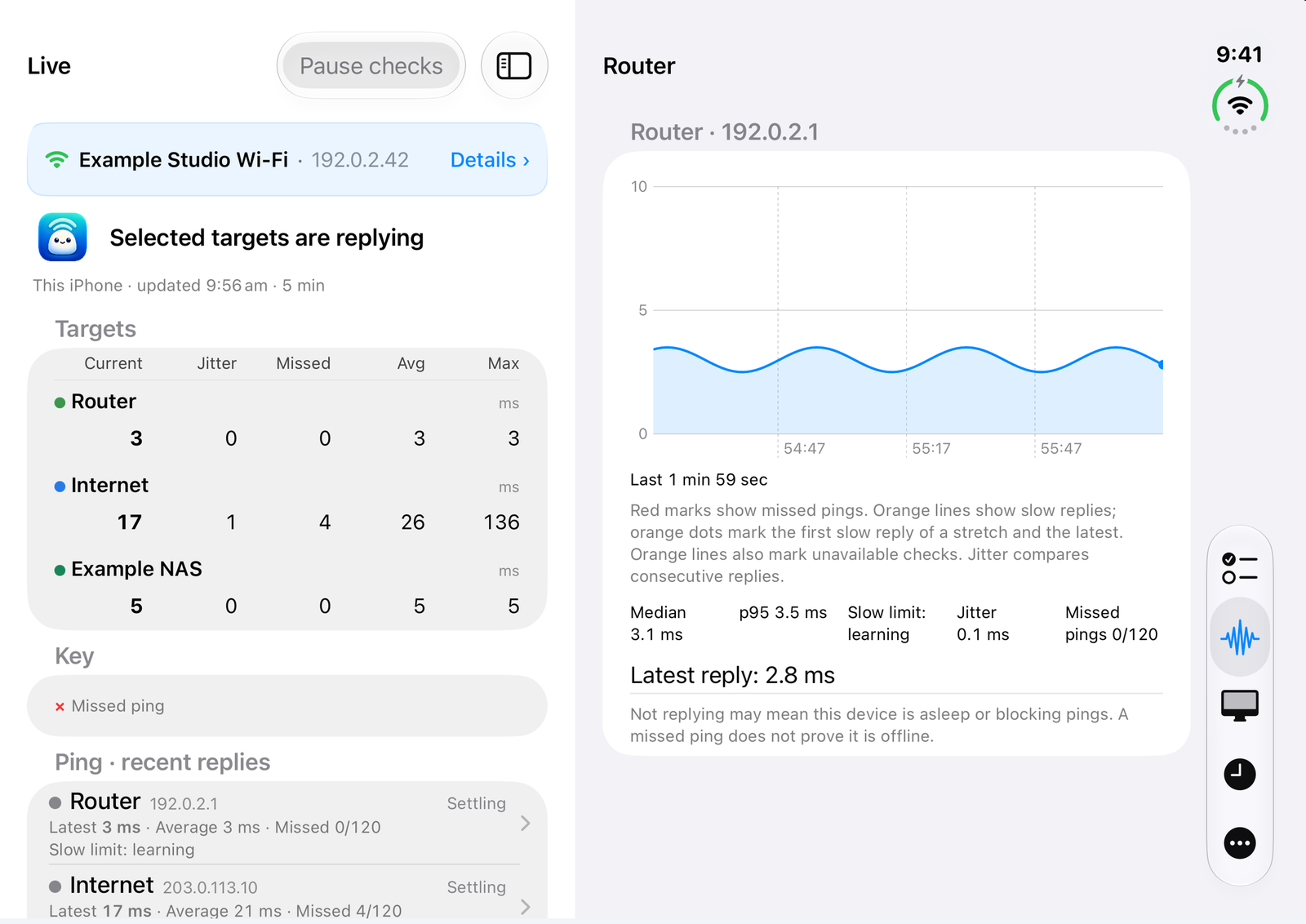
iPhone Duo
In the open layout, see Live alongside a selected target when there is room. These remain the iPhone’s own foreground checks.
Diagnostic tools
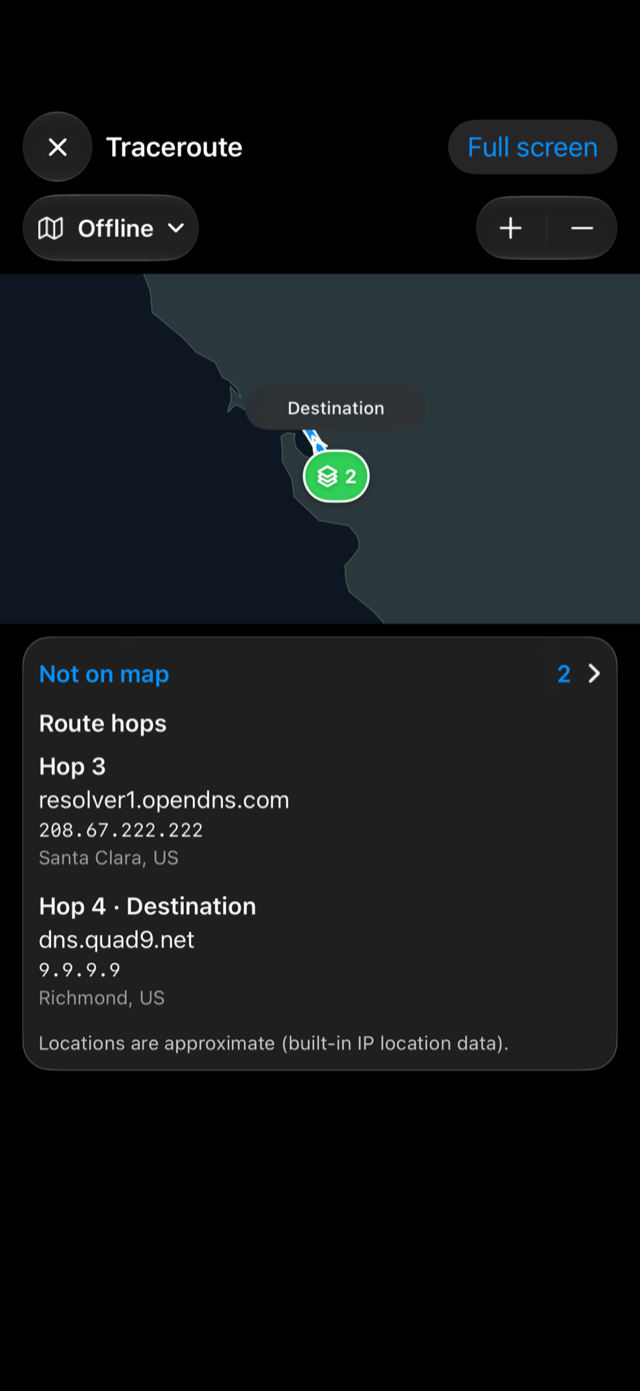
iPhone and iPad include port scan, traceroute, IPv6 check, DNS lookup, DNS speed compare, Whois, Wake-on-LAN and UPnP device search. Local discovery is under Targets → Network scan; it combines advertised Bonjour services with responding IPv4 hosts and can miss silent or isolated devices.
Keep Monlet open while running tools, and allow Local Network access for local-device work. Traceroute uses IPv4 probes; missing hop replies do not prove forwarding failure, and map locations are approximate. Offline applies to the map display, while a new trace still sends network probes.
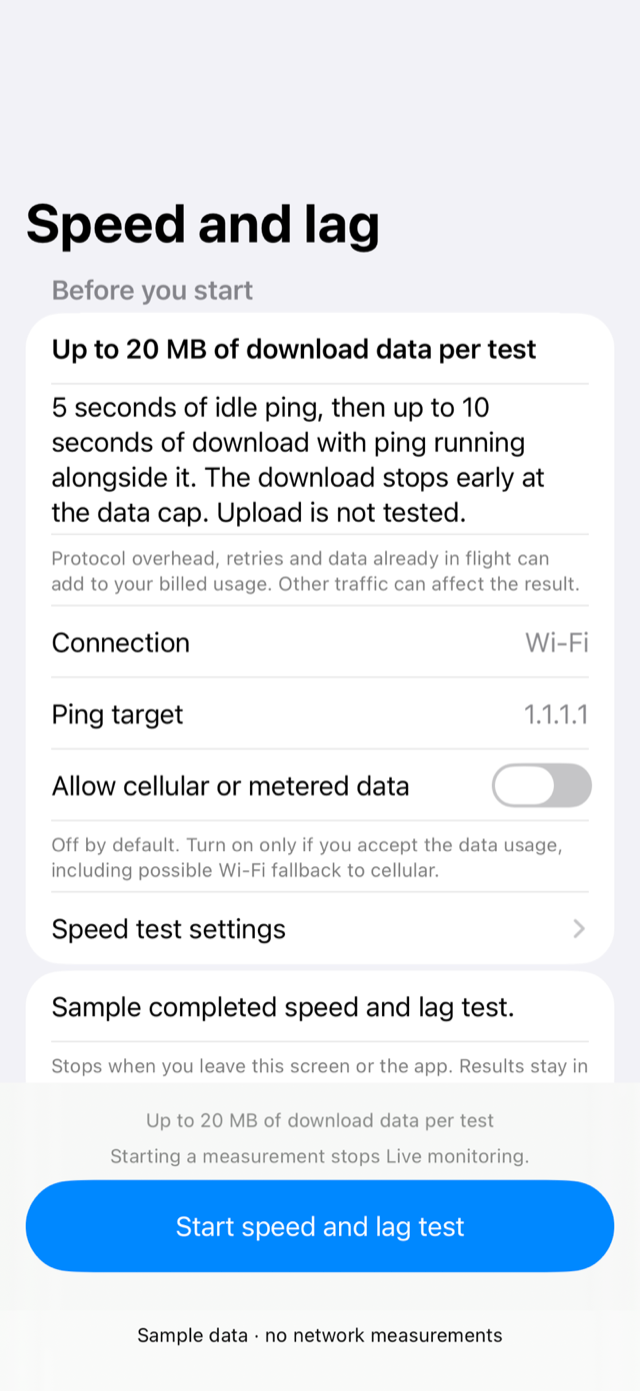
Speed and lag compares idle pings with pings during an HTTPS download. It uses download data and requires an explicit allowance for metered or cellular use; a short transfer may not produce a lag grade.
Explore individual diagnostic tools →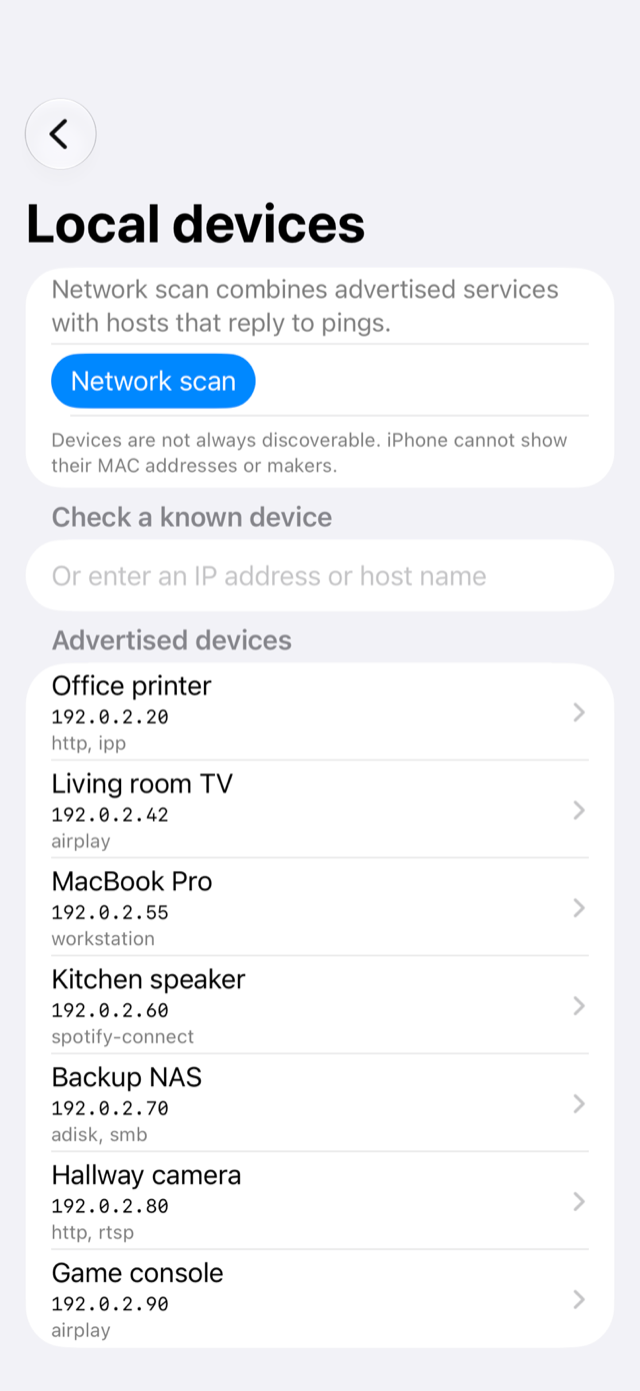
Device settings
Choose the pause between pings for the next session, enable own-device local notifications or send a test alert. Notification permission does not enable background checks; own-device monitoring still needs the app open.
Reset targets and settings after confirmation without deleting saved sessions, room walks or pairing. Saved check-session retention is controlled separately in History, and clearing received Mac data keeps pairing.
Getting connected
Start checks on this device, or set up sharing from your Mac.
Visit Support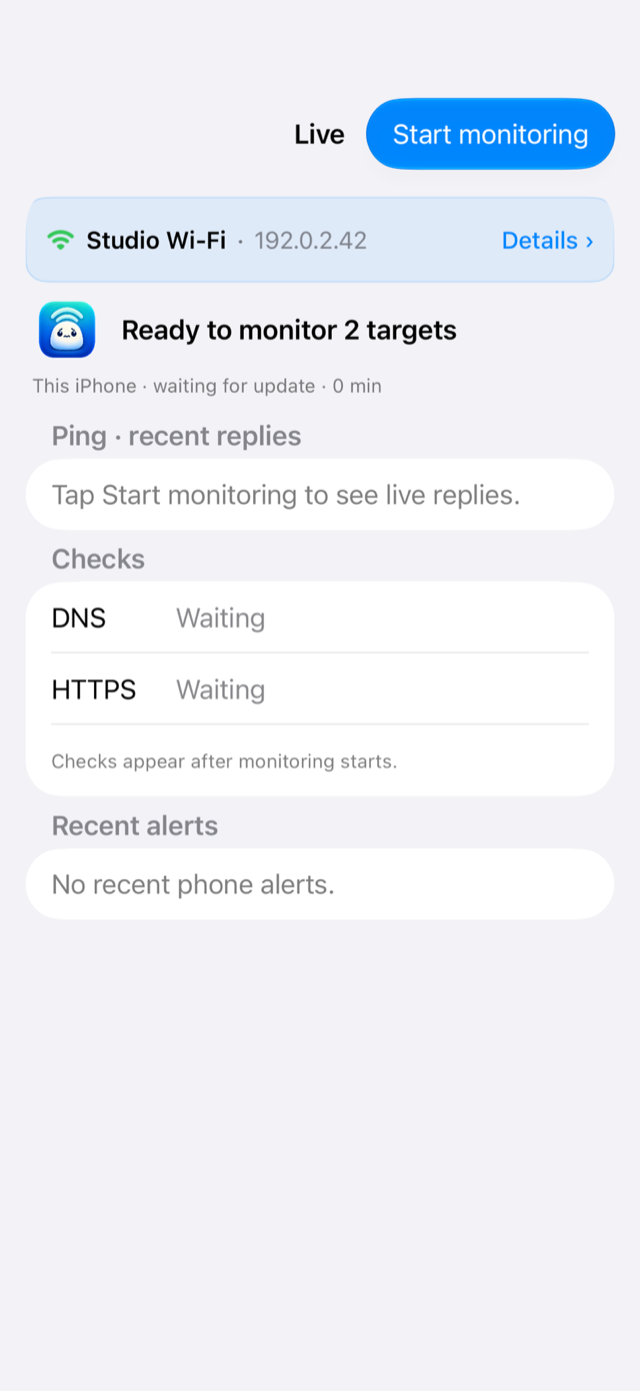
On your Mac, open Settings → iPhone & iPad, turn on Live Mac sharing and choose Pair a new device. On iPhone or iPad, open Mac link → Setup → Add a Mac, then scan the Mac’s QR code or choose Enter setup text. Tap Continue. Type the eight-digit number shown on the accepted iPhone or iPad into the Mac, choose View only or Full control, then Pair. The setup works once within three minutes; a wrong number means starting again. Both devices need Secure Enclave. Follow the pairing steps.
Allow Local Network access to reach local devices and connect to your Mac. For pairing, check access on both devices.
Reopen Monlet to reconnect. The live link stops when iOS suspends the app. Check that Live Mac sharing is on and a network route can reach the Mac. Local access needs Local Network permission; firewall and routing rules can prevent access.