
Mac: Apple silicon with macOS 27.0 or later. iPhone: iOS 27.0 or later. iPad: iPadOS 27.0 or later. Live Mac sharing needs Secure Enclave on both devices.

Monlet for Mac

Your connection,
in the menu bar.

A Mac network monitor that keeps the readings you care about in view. Open the Network Panel for live graphs, target responses and the context behind a change.

Every feature is free today. No subscriptions; optional tips support Monlet.

Mac: Apple silicon with macOS 27.0 or later. Live Mac sharing needs Secure Enclave on both devices.

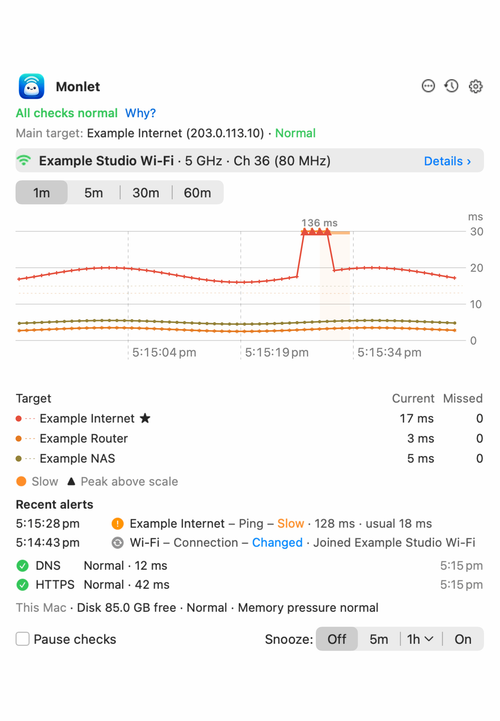
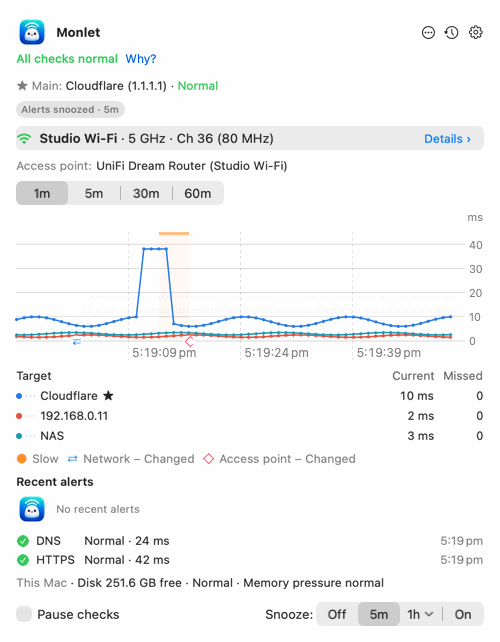
Monlet Network Panel detail: All checks normal, the main target, Wi-Fi connection and live response graph.
Network Panel detail: the main target, connection and live graph. Sample data; the full panel includes additional targets and checks.View full screenshot (light appearance)

Customization · Menu Bar

A small space.
Your choice of readings.

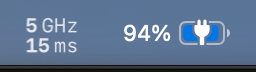
Start with Wi-Fi band and ping, as in this compact two-line example. In Advanced Settings → Menu Bar, choose the readings, their order and whether they sit on one line or two.

Adjust emphasis, labels, fonts and colours to make your selected readings easy to spot.

Connection at a glance

5 GHz above 15 ms.
One example of a layout you can arrange. The battery indicator is part of macOS.

Make room for what matters.

Available readings include Wi-Fi band, ping, Ethernet speed, free disk space, CPU load, swap used, iPhone connection and battery on supported hardware.

Ethernet speed is the primary Ethernet interface’s reported link bit rate, not measured transfer throughput or internet speed. The ping graph shows response times, not internet bandwidth.
Choose the detail in your panel.

Network Panel settings let you show, hide and reorder rows, choose target statistics and adjust graph marks and recent-alert detail.

Bubble appearance has its own controls, including text size, colours and whether to show the character’s face. See the bubble examples.

Live monitoring

Several targets.
One place to watch.

For ping and Wi-Fi monitoring, choose the destinations Monlet checks. Ping response time is latency; missed replies can help you investigate an intermittent connection, but do not identify its cause by themselves. Monlet reads signal strength (RSSI) when macOS provides it. Location access is needed for the Wi-Fi name and access-point details. Your Main target supplies the menu bar ping and Main target row; the graph lets you follow target responses over time.

Recent alerts record earlier events. Read their timestamps alongside the current state to see what changed.

Pause checks when you need to stop monitoring, or snooze alerts while checks continue. Waiting, paused and unknown states are distinct from a measured Normal result.

  • Live graphs and statistics for your selected targets
  • Wi-Fi details, including band, channel and signal strength (RSSI)
  • DNS and HTTPS results for additional context
Mac panel showing All checks normal and Alerts snoozed for 5 minutes, with ping, DNS and HTTPS readings.
Sample state: All checks normal, with alerts snoozed for 5 minutes. Monitoring continues during snooze.

DNS & HTTPS checks

Put a ping in context.

A responding address is one part of the picture. Optional DNS checks time system name resolution; resolver choice and caches can affect the result.

The Mac HTTPS check uses GET, accepts successful 2xx responses and follows redirects only to the configured origin or an approved HTTPS origin. An unfollowed redirect leaves its destination unchecked.

These checks describe configured endpoints, without validating page content or measuring internet bandwidth.

Take a closer look at Wi-Fi details
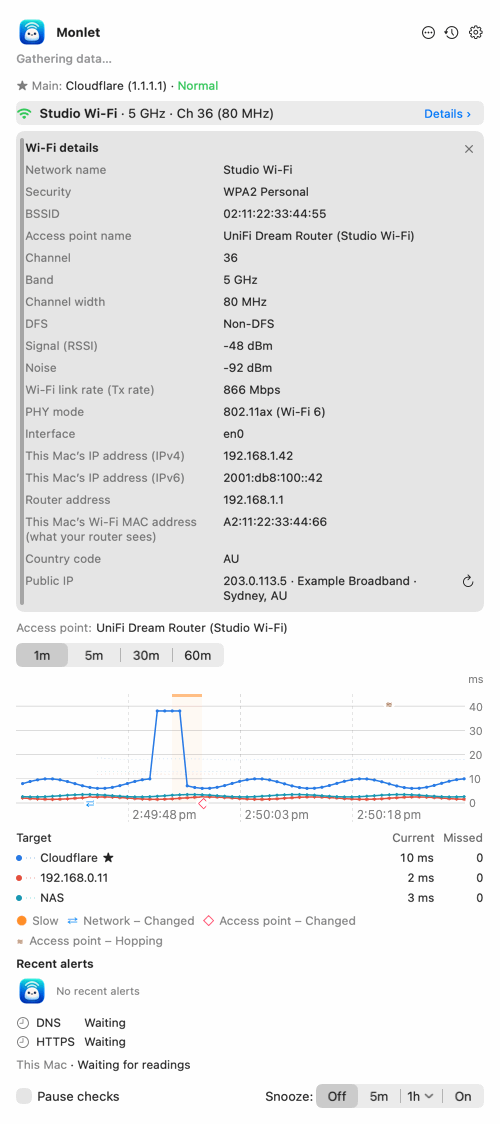
Mac Wi-Fi details for Studio Wi-Fi, including security, channel, signal and addresses.
Sample Wi-Fi details for Studio Wi-Fi: security, channel, signal and addresses.View full screenshot (light appearance)

Insights

An explanation.
And the evidence.

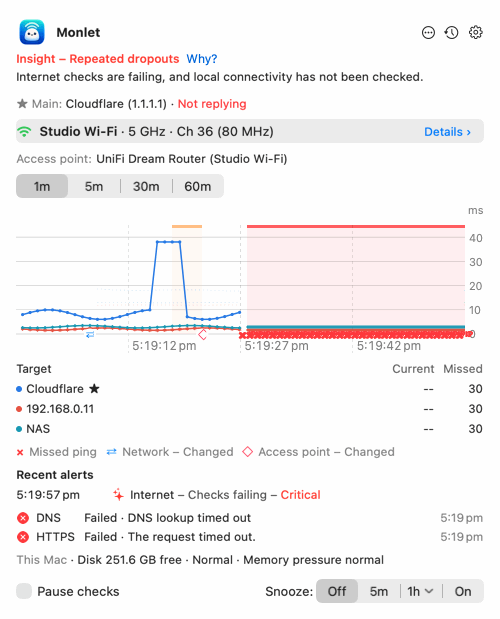
Insights describe what Monlet observes and what might explain it. Open “Why?” to see the diagnosis, Observed evidence, Likely cause and Next step.

The Mac view shows Observed evidence bullets and suggested guidance. These are not calculated probabilities, and an Insight is a way to investigate a problem, not a guaranteed diagnosis.

Here, missed pings and failed DNS and HTTPS checks give you more to investigate than a slow ping alone.

Mac panel showing the Repeated dropouts Insight, missed pings, failed DNS and HTTPS checks, and recent alerts.
Example problem state: Repeated dropouts, missed pings, failed DNS and HTTPS checks, and recent alerts. Sample data.

Settings · Basic and Advanced

Begin with your targets.
Go deeper when you need to.

Basic: start with everyday choices.

Choose monitored targets, a Main target and which targets appear in the Network Panel. Basic also includes common General and Network checks → DNS & HTTPS choices.

Some pages, including alerts, services and tools, still offer detailed controls. You do not need to configure every option to begin.

Advanced: more detailed controls.

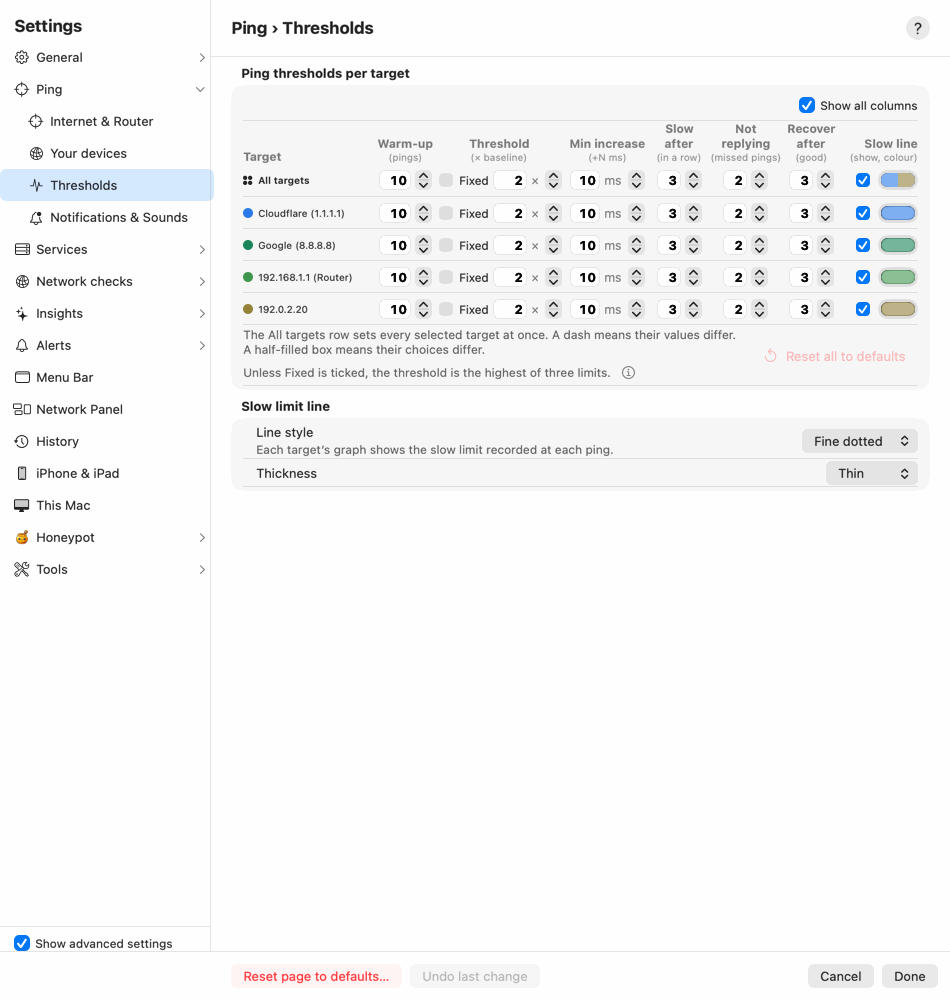
Open Advanced for detailed target thresholds, alert rules and presentation settings. The dedicated Menu Bar editor is available here.

The example below shows per-target ping thresholds in Advanced. It illustrates the extra detail you can explore after choosing your targets.

Advanced Settings detail: per-target ping thresholds and slow-line appearance controls.
Advanced Settings example: ping thresholds per target and slow-line appearance. Cropped to the controls; the full capture has Show advanced settings enabled.View full screenshot (light appearance)

History

What happened around that interruption?

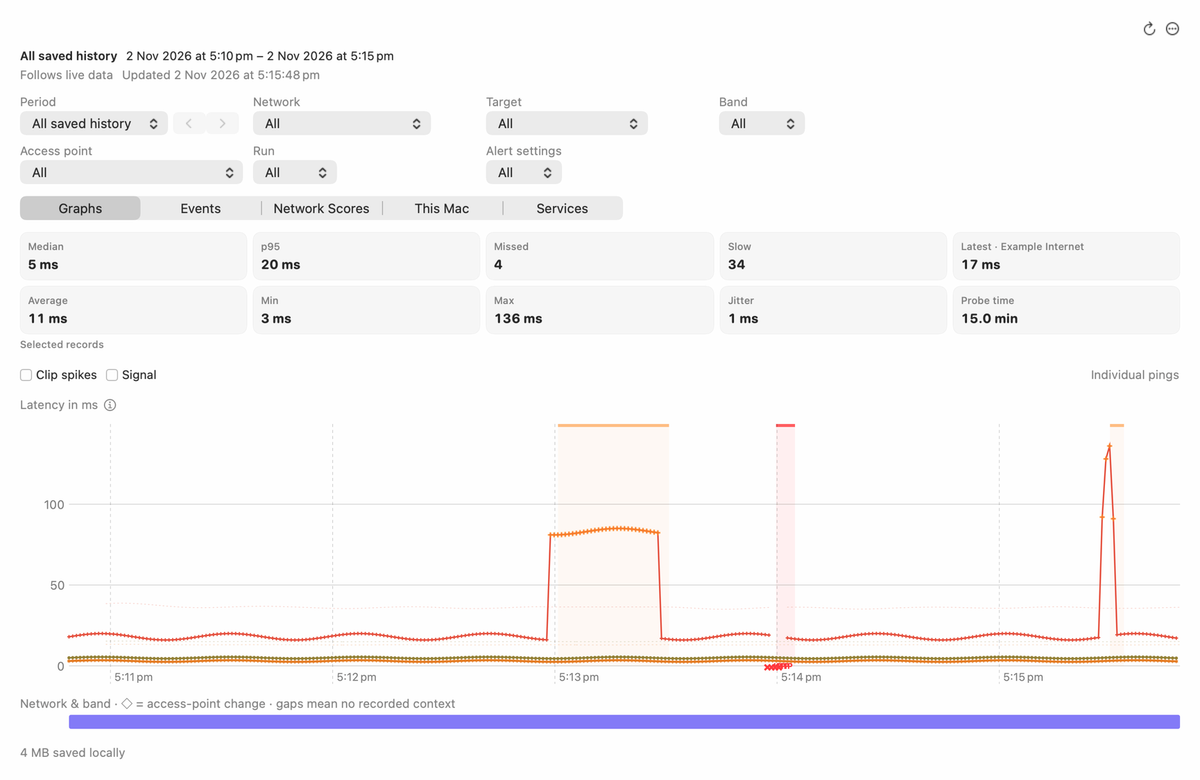
Review connection history through saved graphs, check results and events. Narrow the record by period, network, target, band, access point or run to focus on the moment you want to understand.

Line breaks mark recording gaps or changes of network or target. An unrecorded interval cannot establish whether the connection was up or down.

Mac History with saved reply times, missed replies and a slow patch.
Sample History Graphs: responses, slow and missed pings, and a network-and-band timeline. Filters above the graph help you narrow the record.View full screenshot (light appearance)

Which recorded network period should I inspect?

Network Scores helps you review measured network periods. A score describes the observations saved for that period, not unobserved or continuous uptime.

Use the Mac and Services views to follow saved Mac readings and service checks. For details about what is saved and how it is kept, read the privacy policy.

Follow the events for one target.

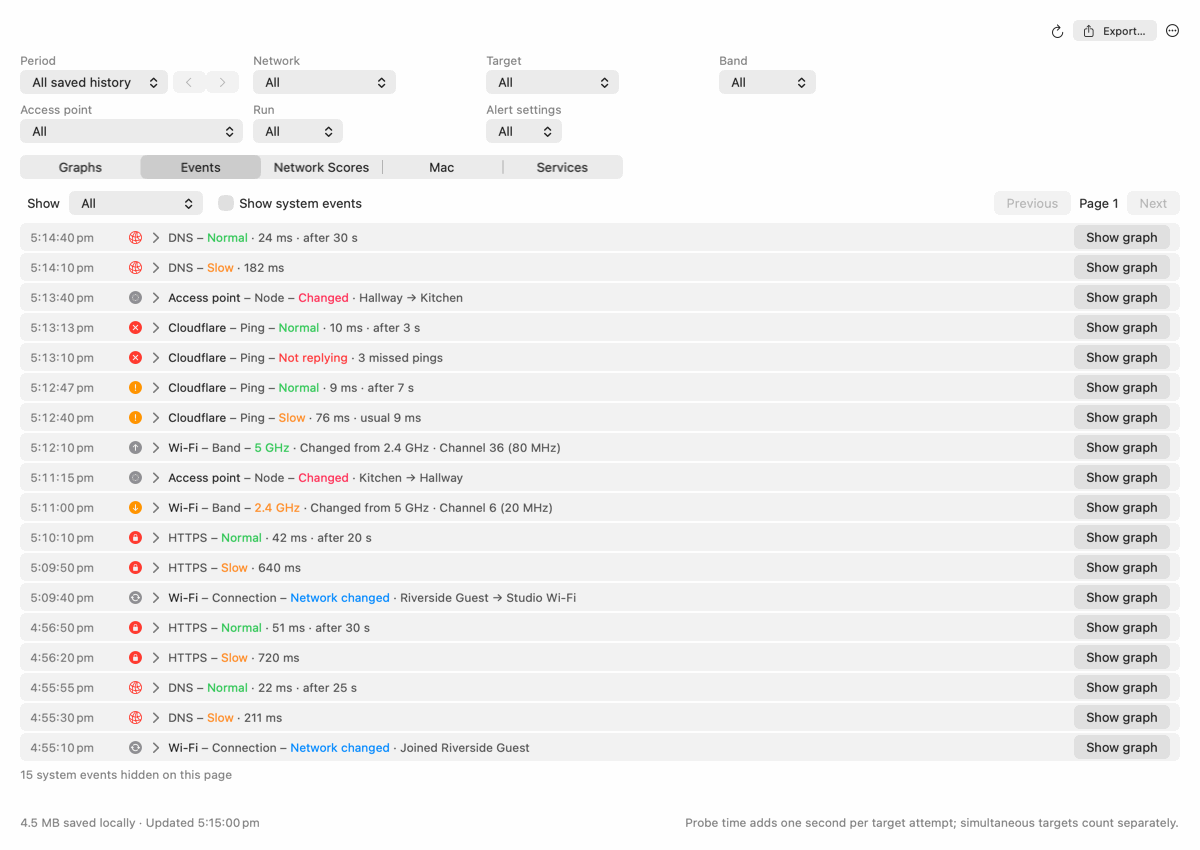
In Events, filter to a target across saved runs. Review timestamped changes, then use an event’s Show graph action to look at its graph context.

The Events example below is a separate sample record from the graph above.

Mac History Events with 18 DNS, HTTPS, ping, Wi-Fi band, access-point and network change alerts.
Separate sample History Events record: DNS, HTTPS, ping, Wi-Fi band, access-point and network changes. Each event has a Show graph action.View full screenshot (light appearance)

Alert choices

A bubble can say enough.

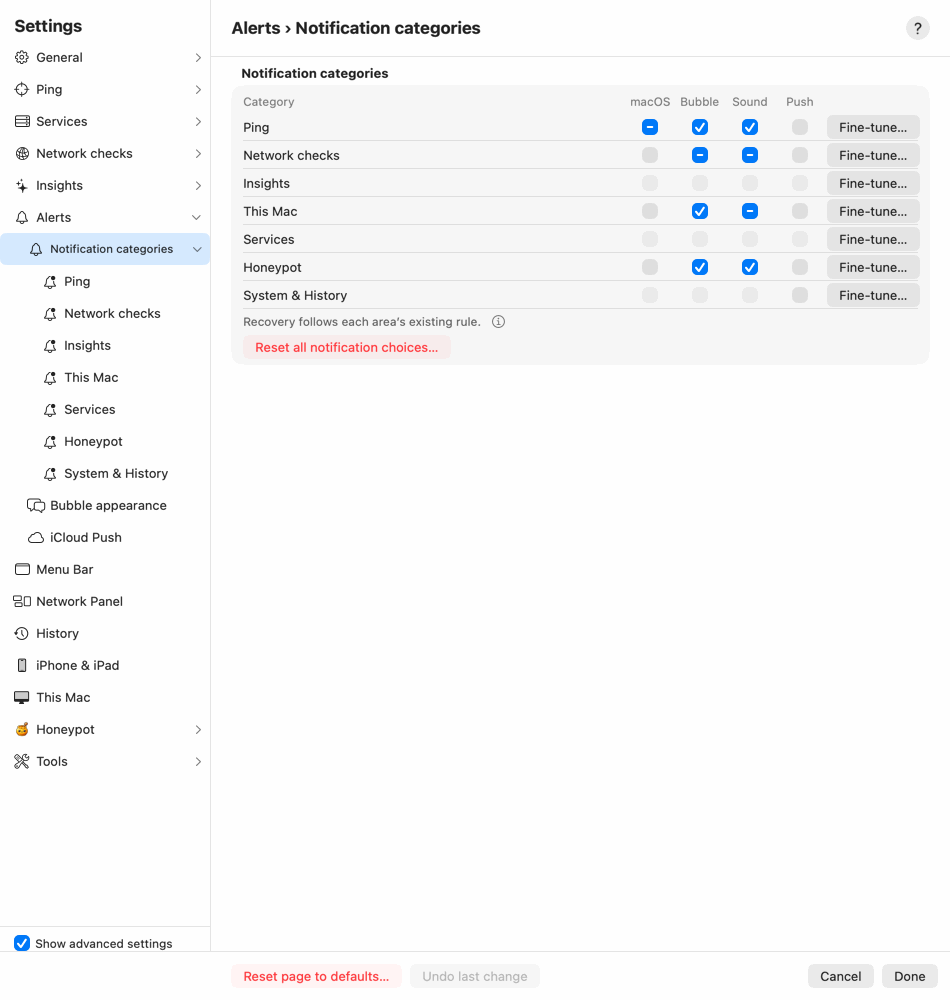
Choose bubbles, Monlet’s macOS notifications and sounds independently. If you prefer bubbles, you can leave Monlet’s macOS notification channel off.

Adjust bubble appearance, including colours, text size, duration and the character’s face. The examples show Normal and Slow states for different targets.

Optional iCloud alerts use the same Apple Account and notification permission on the receiving device; no pairing is needed. Disk-space alerts stay on the Mac. They are separate from the live paired-Mac panel.

Monlet bubble with its character and close control: Cloudflare ping, Normal, 22 ms.
Normal · example state. Cloudflare ping, 22 ms.
Monlet bubble with its character and close control: Google ping, Slow, 75 ms, second occurrence.
Slow · example state. Google ping, 75 ms; second occurrence.

Separate targets and moments, shown as examples.

See the detailed notification categories
Mac notification categories with macOS, bubble, sound and push choices.
Advanced notification categories: separate macOS, bubble, sound and iCloud choices. Sample Settings capture.View full screenshot (light appearance)

Service checks

Watch the service, too.

Check a device’s TCP port, a TLS handshake or an HTTP or HTTPS response, with current status, History and individual alert choices.

HTTP and HTTPS service checks send a configured HEAD or GET request, stop at headers and evaluate the expected status range. They do not follow redirects, fall back from HEAD to GET or validate page content; HTTPS retains certificate validation.

A TCP response confirms a connection was accepted; it does not prove login or full application health. Successful checks describe the checks made, not continuous uptime.

Honeypot

Notice unexpected contacts.

Optionally open selected decoy TCP listeners and record incoming contacts, with trusted-source exclusions and alert choices. Honeypot is off by default and needs available ports and a permitted incoming network path.

It does not provide real login or command execution, and a contact alone does not prove malicious intent. It records connection metadata. On HTTP ports it reads at most the first request byte to show “This connection is recorded.” It does not ask for or save passwords.

This Mac

A view of your Mac’s health.

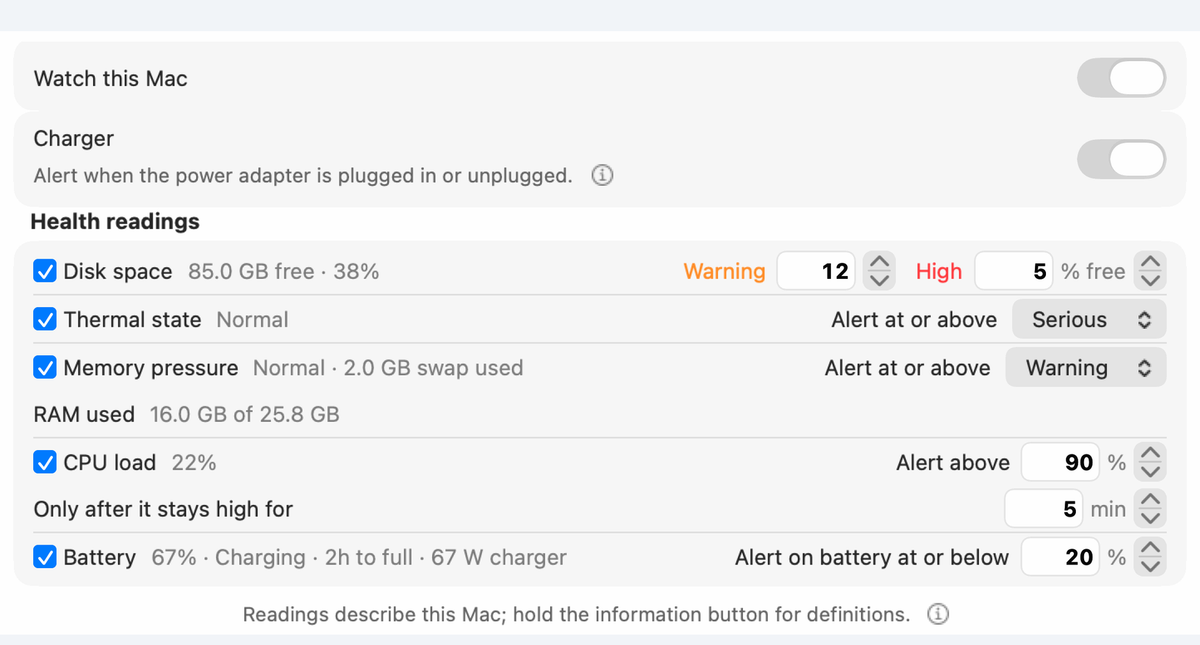
Choose optional readings for disk space, thermal state, memory pressure, RAM use, swap and CPU load, with alerts for disk space, thermal state, memory pressure, CPU load and low battery.

On a Mac with an internal battery, battery readings are available too. Disk-space alerts stay on the Mac.

Mac health settings with disk, thermal, memory, CPU and battery readings.
This Mac: sample health readings and alert choices. Available readings depend on your hardware.View full screenshot (light appearance)

Mac diagnostic tools

Follow the next question.

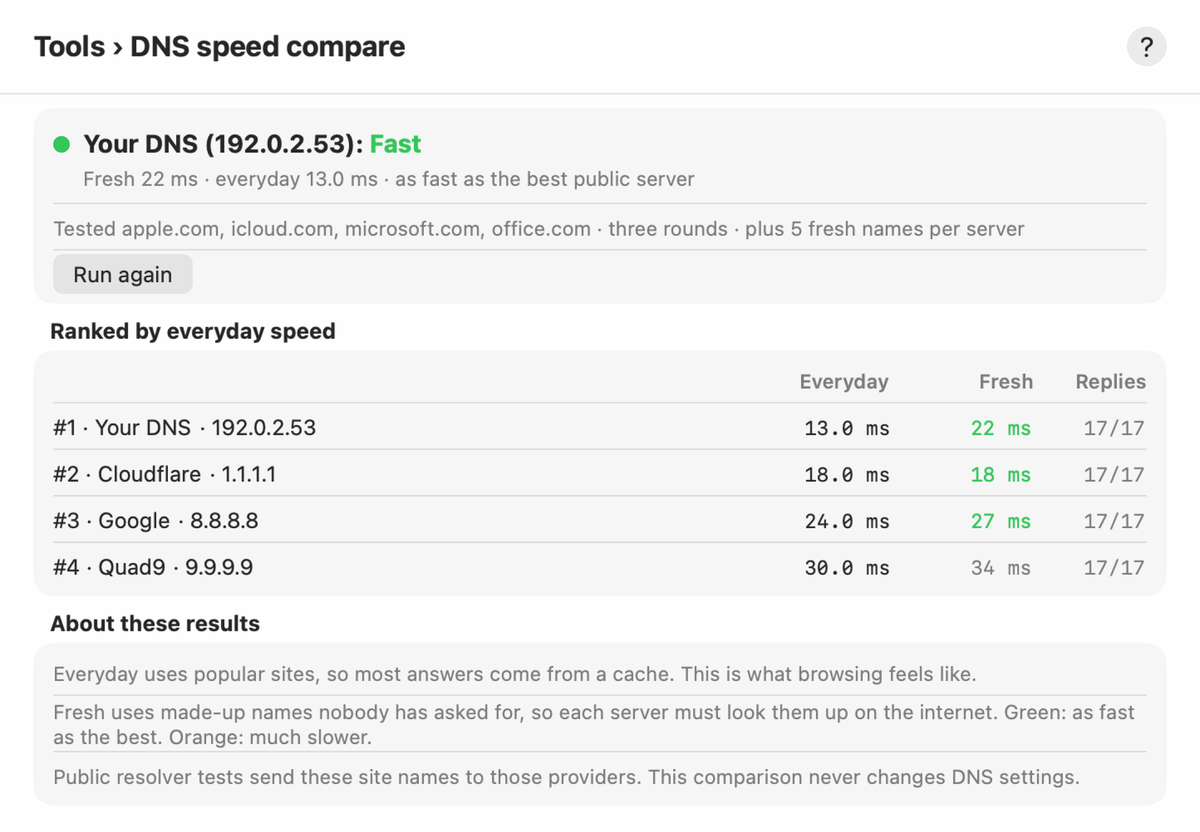
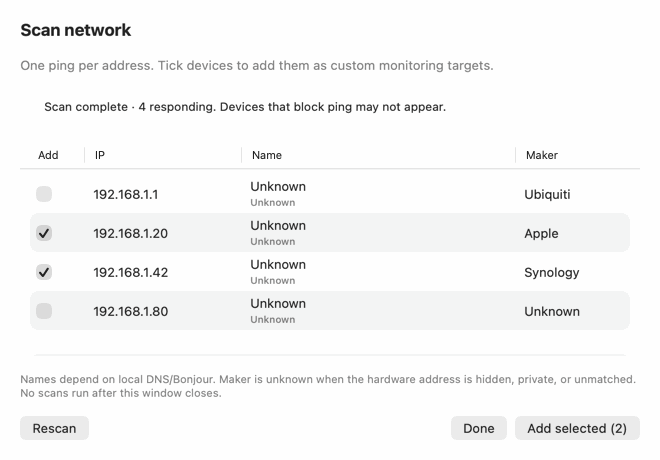
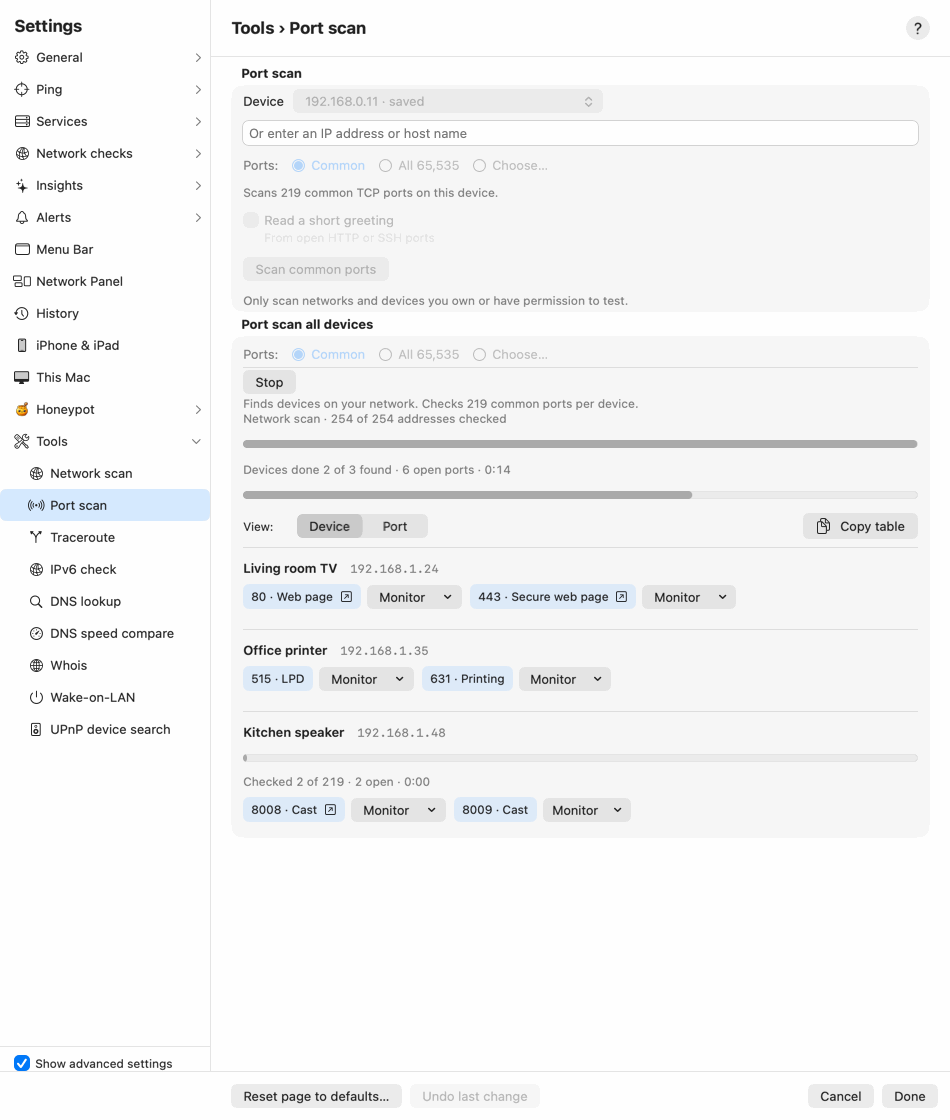
Use the local network scanner to find devices that respond to its checks; devices that block ping may not appear. The Mac’s Tools section also lets you inspect ports, follow a route or look up an address. These tools also have iPhone and iPad counterparts, with local discovery under Targets on mobile.

Mac DNS speed comparison with completed sample resolver timings.
Completed sample DNS speed comparison on Mac, with resolver response times.View full screenshot (light appearance)
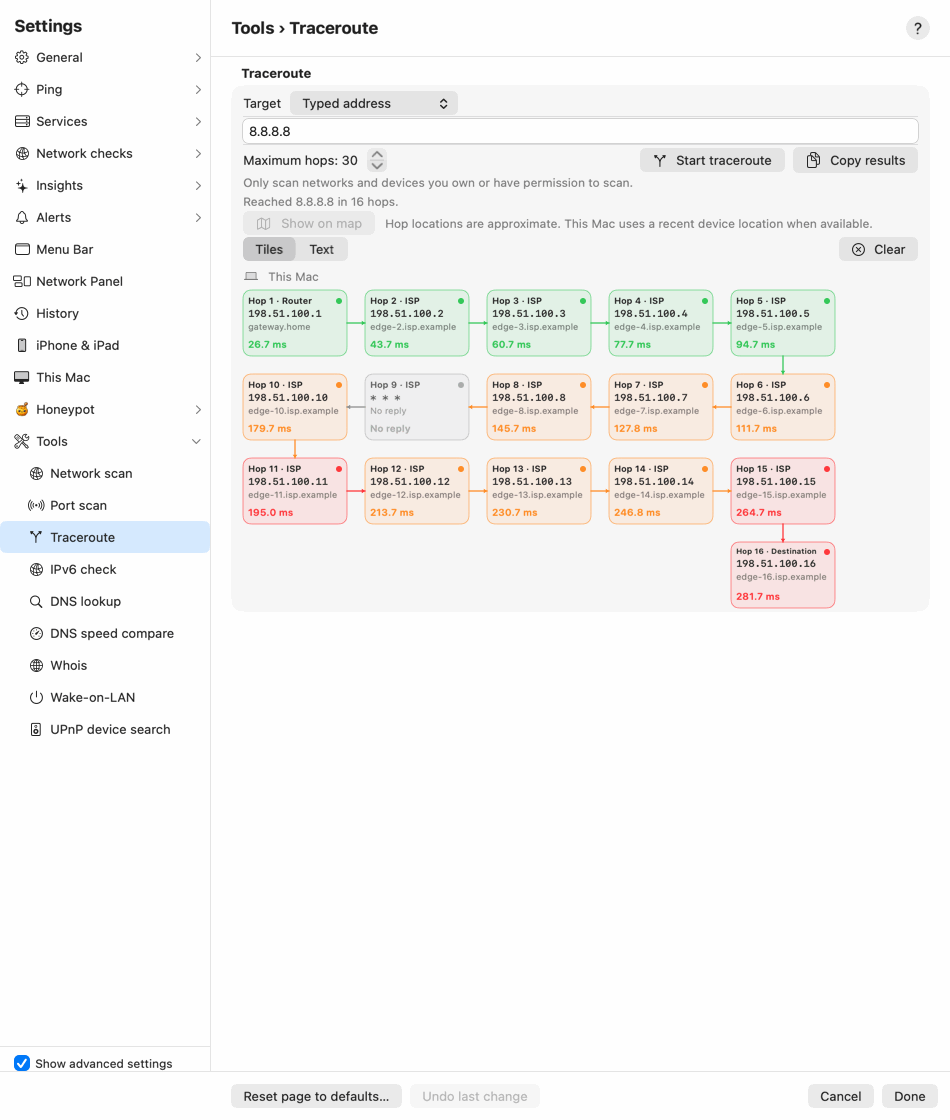
See network scan, traceroute and port scan examples

Keep your Mac in view on iPhone and iPad.

Pair using the Mac’s QR code or setup text, then enter the iPhone or iPad’s eight-digit number on the Mac. Both devices need Secure Enclave. The direct link uses standard TLS 1.3 over any reachable route, with View only or Full control granted on the Mac.

The live Mac link stops when iOS suspends the app or the device locks. Optional iCloud alerts are separate. The phone’s own connection checks require the app to stay open.

Explore the Mac link

Shortcuts

Use the controls in a shortcut.

With Monlet running, Shortcuts can get the current network status, pause or resume monitoring, snooze alerts and run enabled DNS and HTTPS checks. Pause can also schedule a timed resume.

Status uses available readings, and checks still need their permissions and a usable path. Snooze keeps monitoring active; pausing does not disable Honeypot listeners.

Getting started

A few permissions,
with a purpose.

Monlet’s Help explains setup and the permissions behind connection details.

Visit Support
Read the getting-started guide
Why does Monlet ask for Location access?

macOS requires Location permission for the Wi-Fi name and access-point details. Monlet does not keep precise device-location history. Saved History can include network context, optional access-point fingerprints and place labels you add.

What is Local Network access for?

Allow Local Network access so Monlet can check devices on your local network. If it is denied, local-device pings can fail while internet targets still respond.

Where do I find Settings and History?

Open Monlet from the menu bar. The gear opens Settings and the clock opens History. Help is in the panel’s ellipsis menu.

Get Monlet · availability

Monlet for Mac, iPhone and iPad.

Every feature is free today. No subscriptions; optional tips support Monlet.

Download on the App Store

Mac: Apple silicon with macOS 27.0 or later. iPhone: iOS 27.0 or later. iPad: iPadOS 27.0 or later. Live Mac sharing needs Secure Enclave on both devices.